


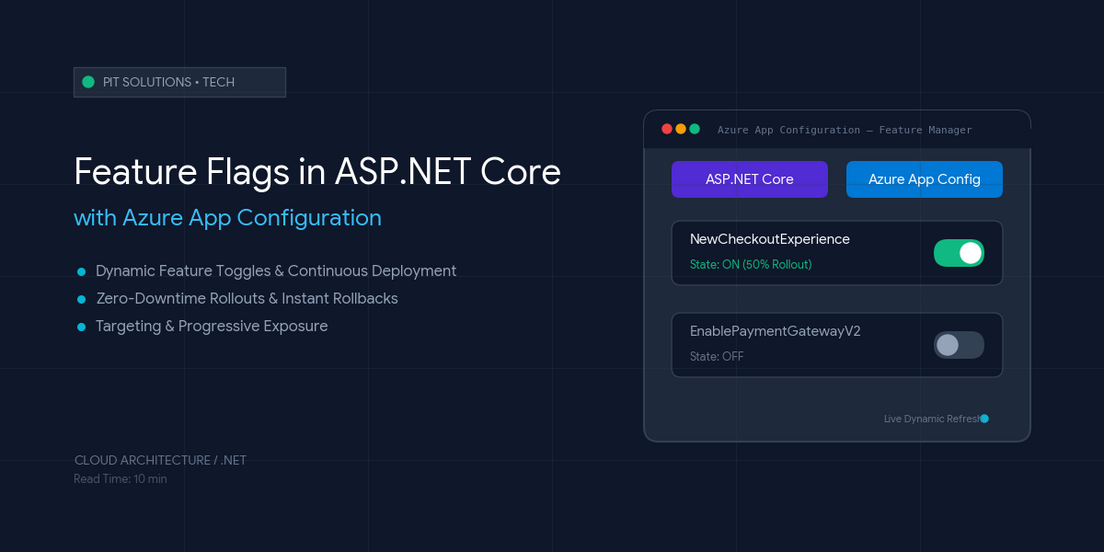
Feature flags in ASP.NET Core help teams release safely, but imagine shipping a critical feature, only to find an edge-case bug crashing production minutes later. Traditionally, fixing this meant initiating a rollback deployment, scrambling developers, and suffering through application downtime.
That’s where feature flags in ASP.NET Core paired with Azure App Configuration come in. By separating code deployment from feature release, you can ship code whenever it’s ready and turn features on or off instantly without touching a single server or triggering a re-deployment.
At PIT Solutions, we help engineering teams adopt modern DevOps and cloud architectures that minimize deployment risks while accelerating release cycles. In this guide, we’ll explore how combining ASP.NET Core with Azure App Configuration enables zero downtime, continuous deployment.
What Are Feature Flags in ASP.NET Core?
Feature flags (also called feature toggles in ASP.NET Core) are conditional switches that control whether a feature is active at runtime. Wrap new functionality behind a flag and evaluate it with IFeatureManager or FeatureGate from Microsoft Feature Management (Microsoft.FeatureManagement.AspNetCore).
Azure App Configuration feature flags provide dynamic feature flags that update without redeploying supporting safe software releases, feature flag rollout, and continuous deployment.
Why Use Feature Flags in ASP.NET Core?
Safer Feature Releases : Deploy with features disabled by default. Validate with internal users first, then widen exposure.
Progressive Rollouts : Expose a feature to 5%, then 25%, then 100% of users for progressive delivery.
Quick Rollbacks and Kill Switches : Disable a broken feature in seconds using Azure App Configuration without requiring a new deployment or restarting the application.
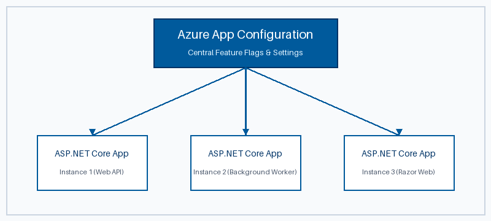
Figure 1: Centralized Configuration and Dynamic Feature Push across ASP.NET Core Instances
[Alt Text: Feature flags in ASP.NET Core: centralized Azure App Configuration (feature-flags-aspnet-core.webp)]
Key Capabilities:
- Dynamic Refresh: Update application behavior live without restarting ASP.NET Core processes.
- Feature Management: Built-in UI to create, toggle, and manage feature flags across environments.
- Targeting & Rollouts: Gradually expose features to specific user segments, percentage subsets, or time windows.
- Security & Integration: Seamless integration with Azure Key Vault for secrets and Managed Identities for secure access.
Components of Feature Toggles in .NET
To implement dynamic feature toggling, ASP.NET Core relies on a few fundamental abstractions:
| Component | Role & Functionality |
| Microsoft.FeatureManagement.AspNetCore | The official Microsoft NuGet package that handles feature evaluation, middleware, and action filters. |
| IFeatureManager | The core interface used to conditionally check feature flags in your C# code or Razor components. |
| Feature Filters | Rules that determine if a flag is active (e.g., percentage-based, targeting specific user roles, or time windows). |
| Sentinel Key | A key in Azure App Configuration used to trigger cache refreshes across your ASP.NET Core app instances. |
How to Implement Feature Flags in ASP.NET Core With Azure App Configuration
Step 1: Create an Azure App Configuration Resource
- 1. Log into the Azure Portal, click 'Create a resource', and search for App Configuration.
- 2. Choose your subscription, resource group, name, and pricing tier (Standard or Free).
- 3. Once created, navigate to Feature Manager under the Operations menu.
- 4. Click Create and add a new flag named 'NewCheckoutExperience' (Off by default).
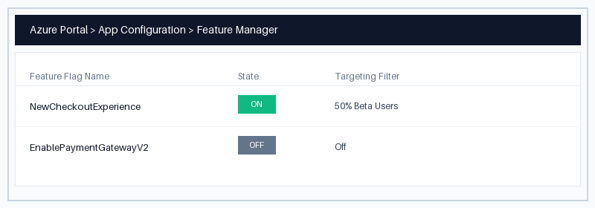
Figure 2: Creating a Feature Flag inside Azure App Configuration Portal
[Alt Text: Azure App Configuration feature flags in Feature Manager (azure-app-configuration-feature-manager.webp)]
Step 2: Install the Required NuGet Packages
In your ASP.NET Core web app or API project, install the required Microsoft libraries:
| dotnet add package Microsoft.Azure.AppConfiguration.AspNetCore dotnet add package Microsoft.FeatureManagement.AspNetCore |
Step 3: Connect ASP.NET Core to Azure App Configuration
Connect your application to Azure App Configuration and configure dynamic refresh so flag updates are picked up without app restarts:
| var builder = WebApplication.CreateBuilder(args); // Load connection string from settings or Environment Variables string connectionString = builder.Configuration.GetConnectionString("AppConfig"); // Add Azure App Configuration builder.Configuration.AddAzureAppConfiguration(options => { options.Connect(connectionString) .UseFeatureFlags(featureFlagOptions => { // Automatically refresh flags every 30 seconds featureFlagOptions.CacheExpirationInterval = TimeSpan.FromSeconds(30); }); }); // Add Feature Management services builder.Services.AddAzureAppConfiguration(); builder.Services.AddFeatureManagement(); var app = builder.Build(); // Enable App Configuration Middleware for dynamic refresh app.UseAzureAppConfiguration(); app.UseRouting(); app.UseAuthorization(); app.MapControllers(); app.Run(); |
Step 4: Create a Feature Flag
Define your flag in Feature manager with a label (e.g., Production) and optional filters.
Step 5: Enable or Disable Features in ASP.NET Core
Toggle flags in the Azure portal or via Azure CLI. Changes propagate within the cache refresh interval without redeployment.
Step 6: Use FeatureGate and IFeatureManager
Method A: Action Filter Attribute ([FeatureGate])
Restrict an entire Controller endpoint to only execute when a flag is enabled:
| [ApiController] [Route("api/[controller]")] public class CheckoutController : ControllerBase { [HttpGet("v2")] [FeatureGate("NewCheckoutExperience")] public IActionResult GetNewCheckout() { return Ok(new { Message = "Welcome to the new high-speed checkout!" }); } } |
Method B: Programmatic Evaluation (IFeatureManager)
Inject IFeatureManager to handle inline conditional logic:
| public class OrderService { private readonly IFeatureManager _featureManager; public OrderService(IFeatureManager featureManager) { _featureManager = featureManager; } public async Task ProcessOrderAsync() { if (await _featureManager.IsEnabledAsync("NewCheckoutExperience")) { // Execute modern checkout payment pipeline } else { // Fall back to legacy checkout pipeline } } } |
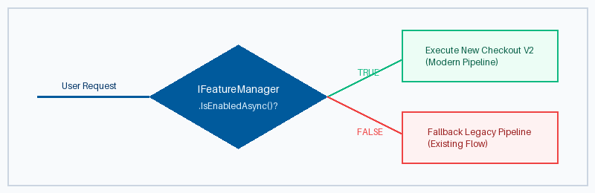
Figure 3: Conditional Code Execution via IFeatureManager Evaluation
[Alt Text: Feature flags in .NET — IFeatureManager evaluation (aspnet-core-ifeaturemanager.webp)]
How Dynamic Feature Flag Refresh Works in ASP.NET Core
UseFeatureFlags with a cache expiration interval polls Azure App Configuration for changes. A sentinel key triggers refresh across instances, no restart required for dynamic feature flags.
How to Use Feature Flag Targeting and Progressive Rollouts
Percentage-Based Rollouts
Enable a feature for a subset of traffic. Percentage filters hash user identifiers for consistent experiences.
User and Group Targeting
Target specific user IDs, roles, or custom groups.
Canary Releases
Deploy with the flag off, enable for a canary group, monitor telemetry, then expand.
A/B Testing
Run variant experiences behind different flags before committing to one UX path.
Feature Flags vs. Traditional Feature Deployment
Traditional deployment ties visibility to release cadence. Feature flags decouple deployment from release, rollback becomes a configuration change.
Using Feature Flags With CI/CD Pipelines
Integrate flag state into pipelines using Azure CLI, Bicep, or Terraform. Automate enabling flags per stage while keeping code deployment automated.
Securing Azure App Configuration and Feature Flags
- Use Managed Identity: Avoid embedding connection strings in appsettings.json.
- Least-privilege RBAC: Assign App Configuration Data Reader to applications.
- Key Vault integration: Store secrets separately and reference from App Configuration.
Feature Flag Best Practices for Production ASP.NET Core Applications
- Keep Flags Short-Lived: Feature flags are meant for releases. Once a feature is 100% rolled out and stable, delete the flag from Azure and clean up the conditional code branches.
- Use Managed Identities: Avoid embedding raw App Configuration connection strings in appsettings.json. Use Azure Managed Identity (DefaultAzureCredential) for secure authentication.
- Configure Practical Cache Intervals: Setting cache expiration too low (e.g., 1 second) causes excessive HTTP requests to Azure; setting it too high delays toggles. A 30–60 second window works best for most production systems.
- Automate via CI/CD: Manage feature flag states alongside your infrastructure using Terraform, Bicep, or Azure CLI steps during release pipelines.
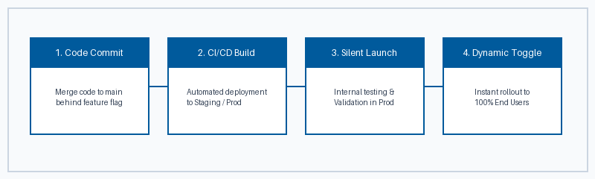
Figure 4: Automated Feature Flag Management across Deployment Stages
[Alt Text: Feature flag deployment via CI/CD pipeline (feature-flag-cicd-pipeline.webp)]
How to Avoid Feature Flag Technical Debt
Assign an owner and removal deadline for each flag. Schedule cleanup sprints to delete stale flags and simplify conditional logic.
Real-World Example: Rolling Out a New Feature With Feature Flags
A team ships checkout redesign behind NewCheckoutExperience: dark launch, 10% rollout on day 5, 100% on day 10. Rollback during rollout is one toggle click, zero downtime.
Building Scalable ASP.NET Core Release Systems
Mastering feature flags in ASP.NET Core is essential for high velocity development teams looking to minimize deployment risk. By shifting to progressive delivery, your team can deploy faster, test safer, and roll back instantly when needed.
At PIT Solutions, our certified cloud engineers assist enterprise teams with custom software development, enterprise web application development, and modern release pipelines.